HOW TO GRRRIND
Download, whitelist, and run the bot in 10 quick steps.
Windows Defender flags the bot as a false positive. Adding your Grrrind folder as an exclusion (steps 4–9) stops it from being removed. Do this before opening the app.
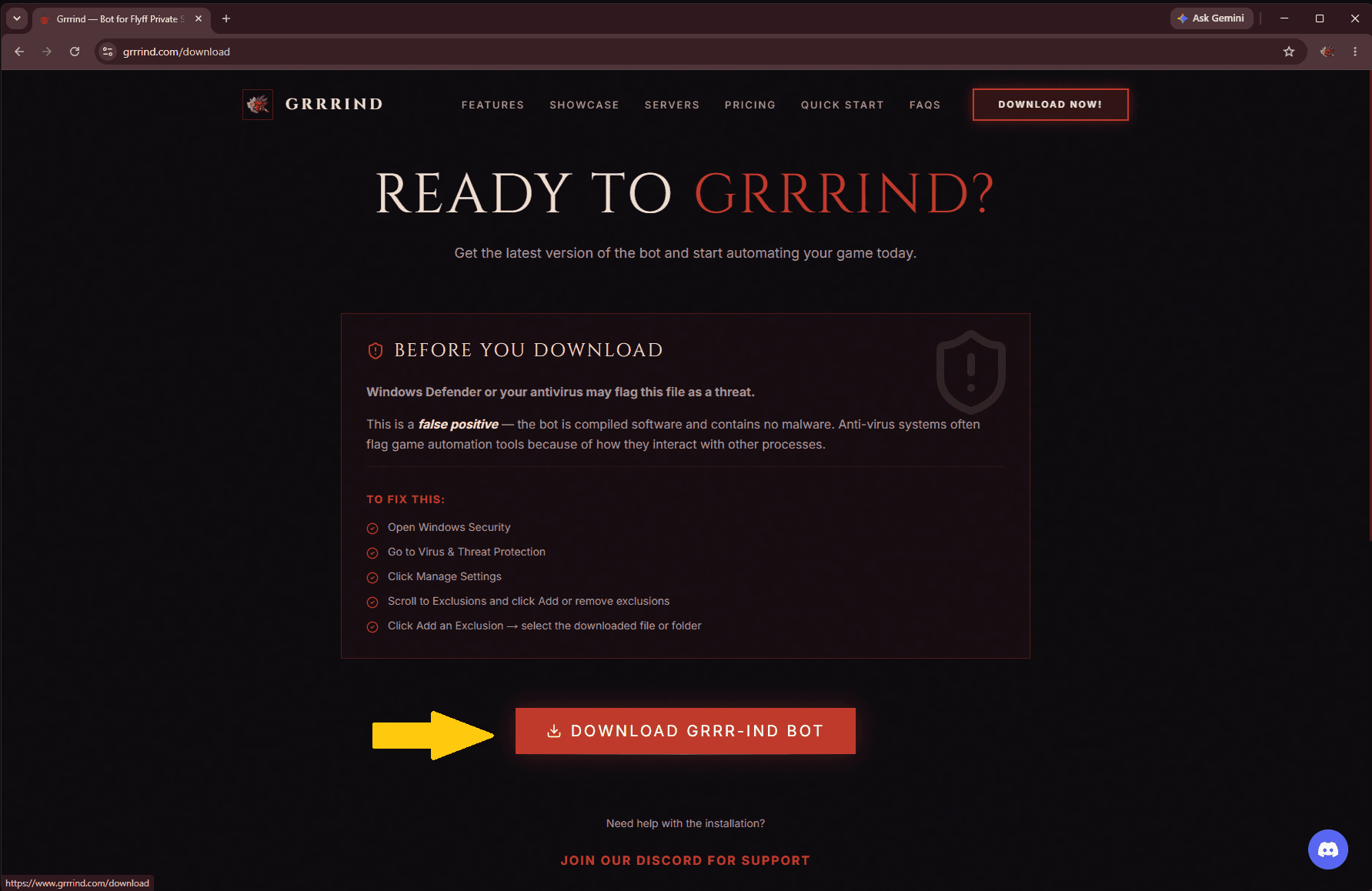
Download from the website
Head to the download page and click Download Grrr-ind Bot. Your browser may warn you — that's a normal false positive for game automation tools.
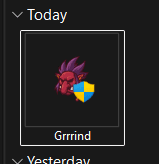
Find Grrrind.exe in your Downloads
Once finished, the Grrrind app will appear in your Downloads folder.
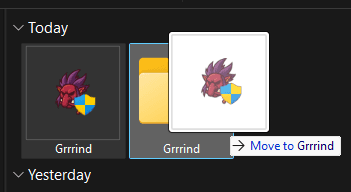
Create a folder and move it inside
Make a new folder (name it anything — here it's "Grrrind") and cut & paste or drag Grrrind.exe into it.
DO NOT open it yet — search Windows Security
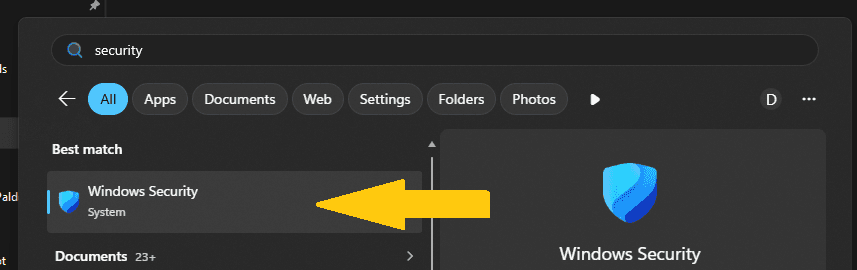
Press the Windows key, type "security", and open Windows Security.
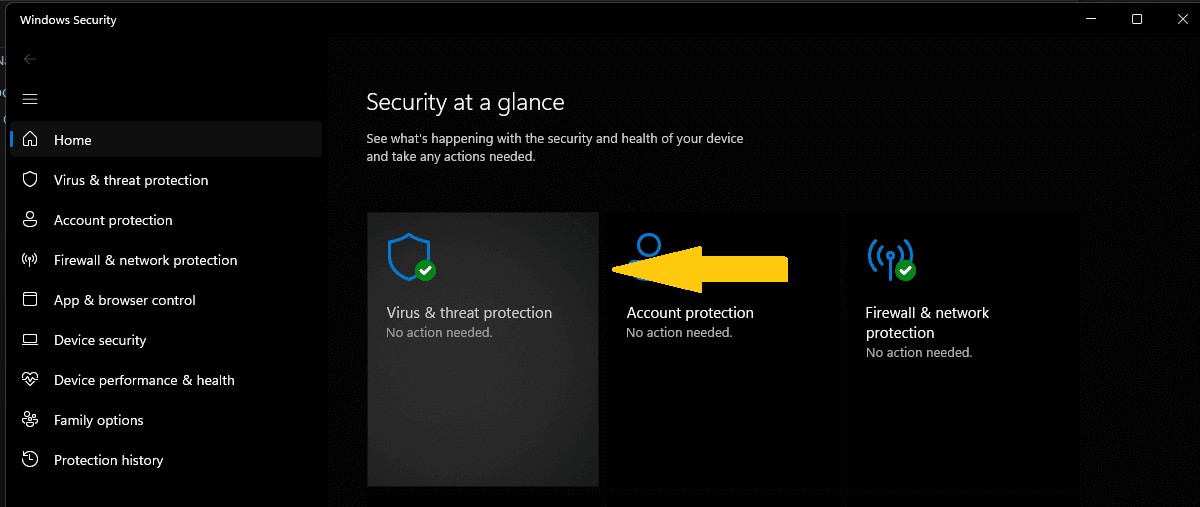
Open Virus & Threat Protection
In the left menu, click Virus & threat protection.
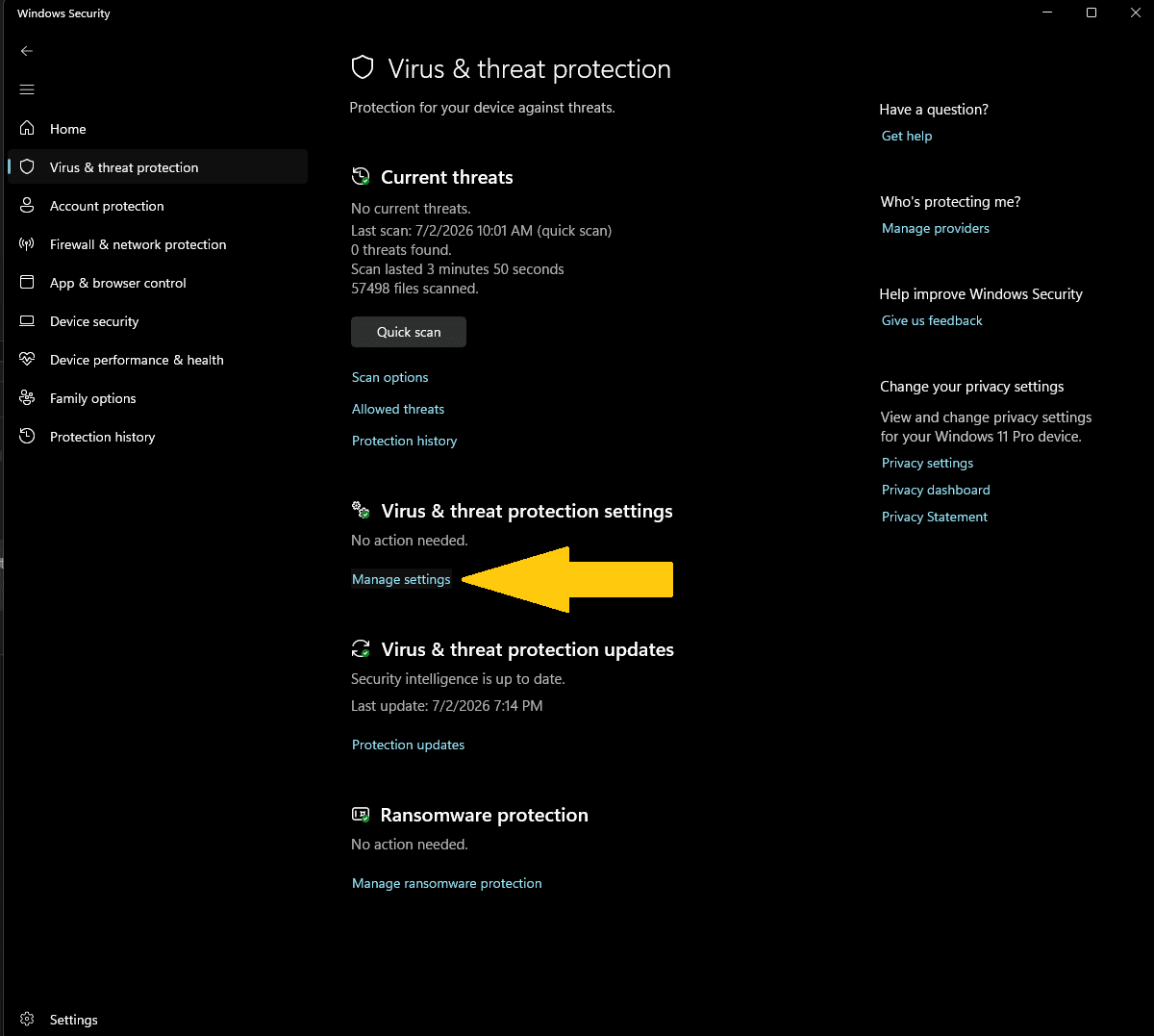
Click Manage Settings
Under Virus & threat protection settings, click Manage settings.
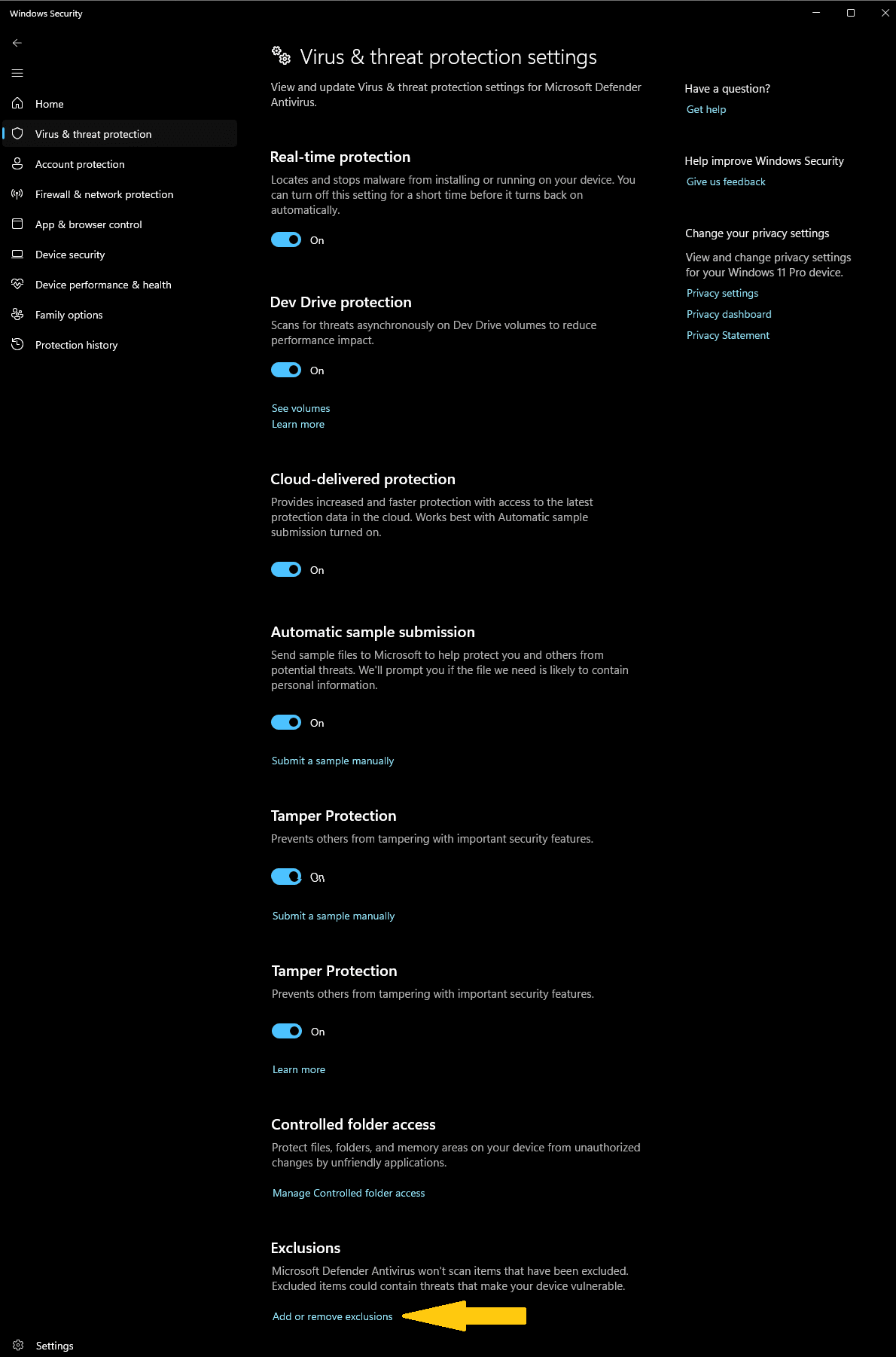
Add or remove exclusions
Scroll down to Exclusions and click Add or remove exclusions.
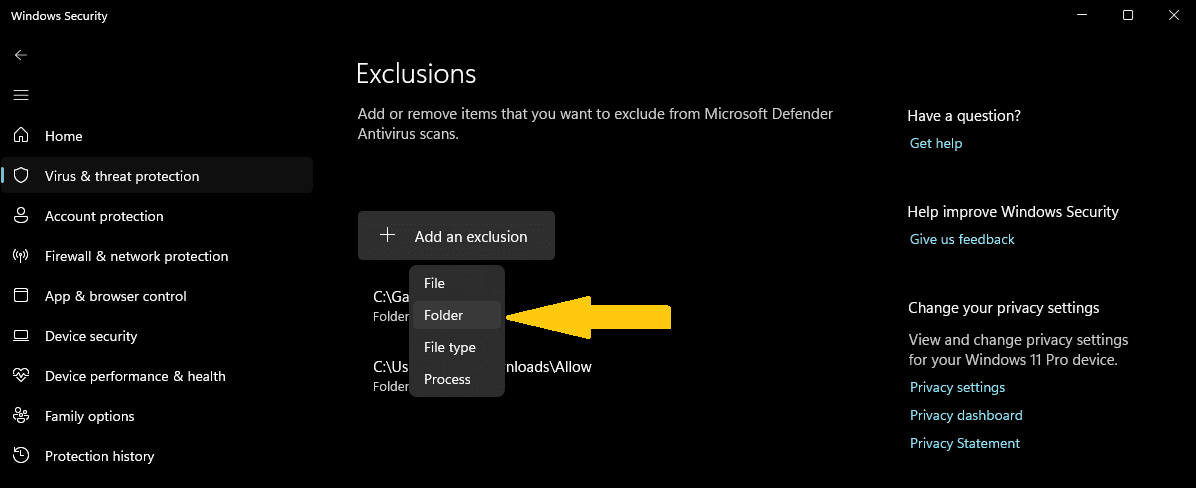
Add an Exclusion → Folder
Click Add an exclusion, then choose Folder.
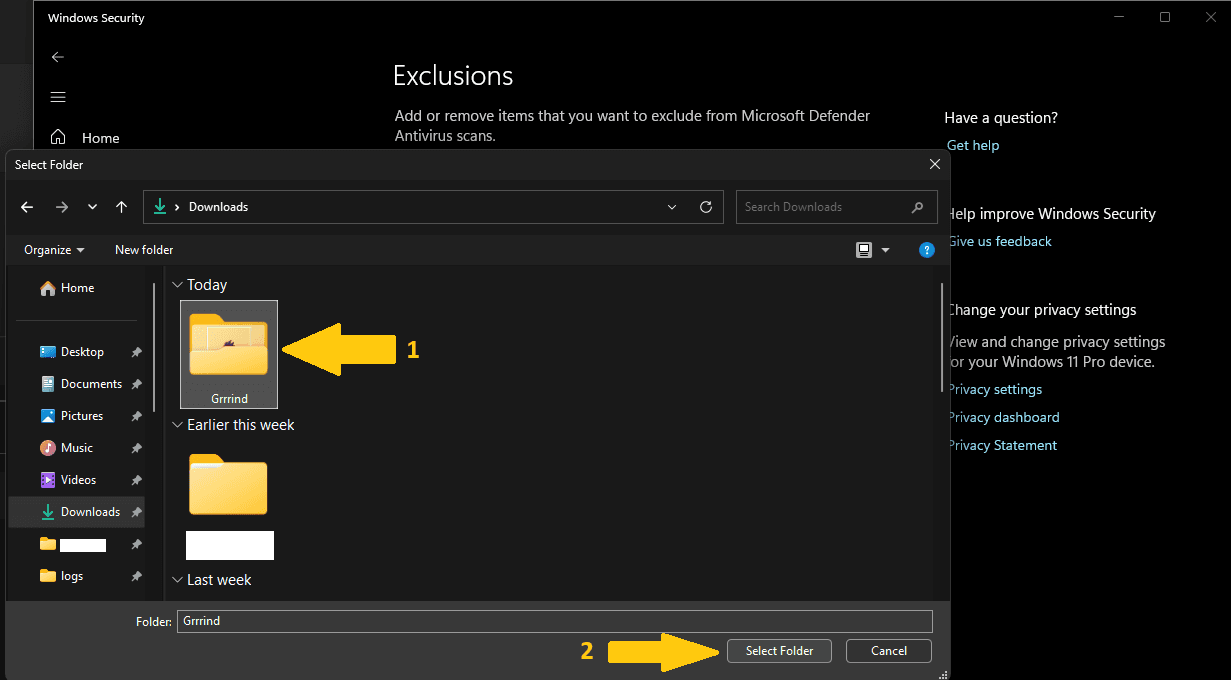
Browse to your Grrrind folder
Select the folder where you moved Grrrind.exe (1), then click Select Folder (2).
Run the app as administrator
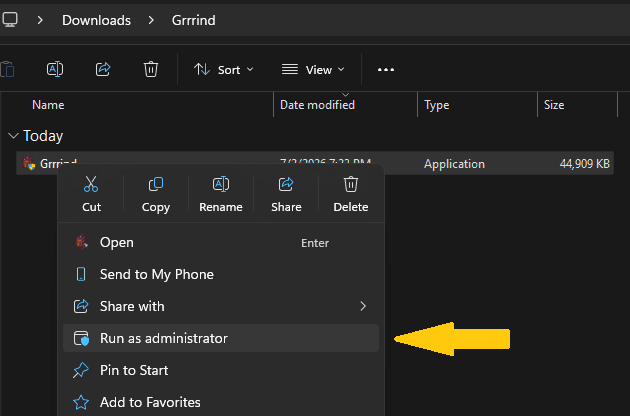
Right-click Grrrind.exe and choose Run as administrator. You're ready to grind.